
| CONTENTS | GLOSSARY | SEARCH DOCUMENTATION |
The following lists revision summaries for PROPACEOS:
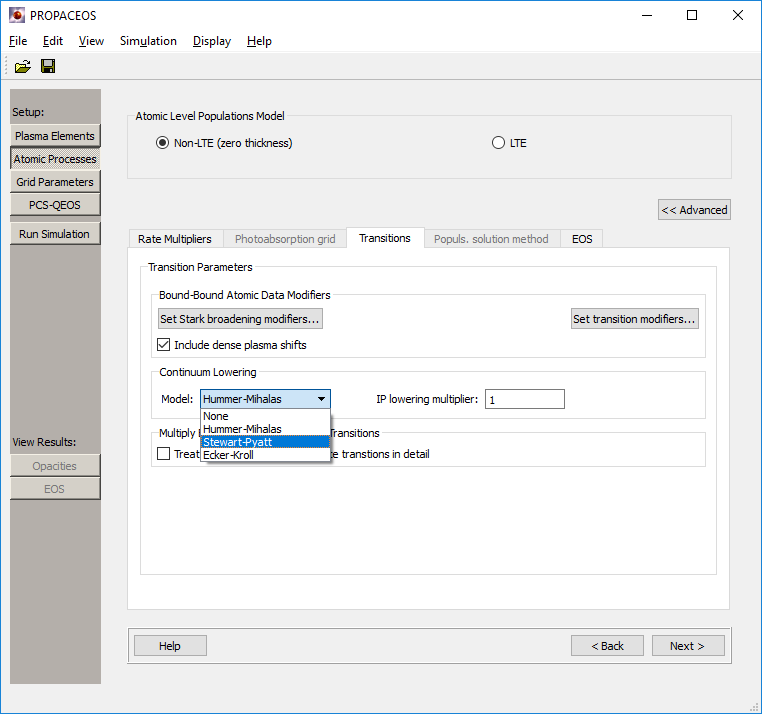
To modify the Stark widths, go to the Atomic Processes panel, click on the Advanced button, select the Transitions tab and click on the Set Stark broadening modifiers... button. The dialog shown below will appear:
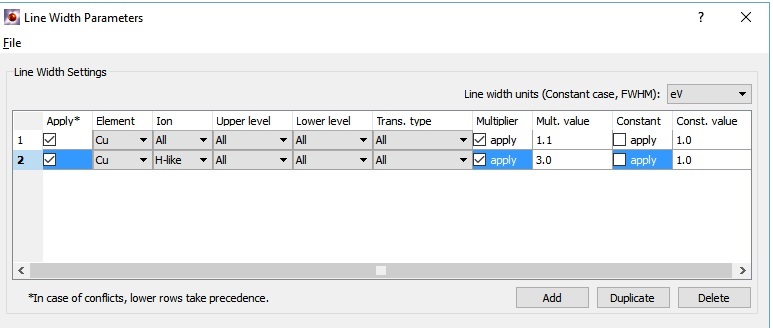
Clicking on the Add button adds a row with default settings. The element, ionization stage, upper and lower level principal quantum numbers, and the transition type can all be chosen via combo boxes. There is an option to use with a multiplier on the model line width or a constant value for the FWHM (full width at half-max). When a constant value is specified, the units to be used are specified in the combo box in the upper right of the dialog. The choices are: eV, Angstroms or milliAngstroms.
In cases where transitions are included in more than one row, the lowest row that includes the transition will be the one to take precedence.
Line width modifiers can now be imported/exported to data files so that they can be used in other SPECT3D or PrismSPECT applications. To do this, in the Set Stark Broadening Modifiers dialog, select the File | Import (Export) Line Broadening Modifiers menu items
Line Profile Data: This feature is a beta version and not available to all users.
To modify the line shape of K-shell lines where temperature and density dependent tabulated profiles are available, click on the check box and browse for the file.
Line profiles supplied by Prism are based on simulation results from the Multi-Electron Radiator Lineshape (MERL) code1.
1. R. C. Mancini, et al, "Calculational Aspects of the Stark Line Broadening of Multi-Electron Ions in Plasmas", Comp. Phys. Commun. 63, p. 314 (1991).
If the table containing the transition data has not been previously displayed, a message is shown warning the user that the transition data needs to be read in from the atomic data files. Depending on the number of elements and their atomic numbers, this process can take some time.
The transitions from the atomic data files are shown in a table at the top of the widget. To modify transition parameters, select one or more transitions in the upper table, and click on the Add to Selected Transitions button.
In the upper table, transitions can be filtered by:
Click the Update button to apply the selected filters.
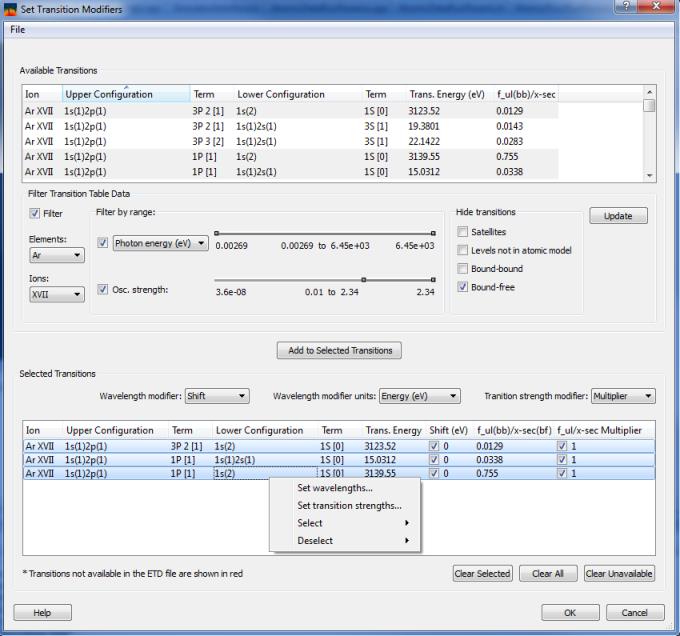
In the lower table, adjustments to transition energies and transition strengths can be made as follows:
For individual transitions, values can be set by typing directly into the table. Values can also be set for multiple transitions by selecting them, then right-clicking and selecting an option from the context menu.
The changes will be applied only if the check boxes for the transition are checked.
The adjusted values are utilized both in computing photoexcitation/photoionization rates and resultant spectra.
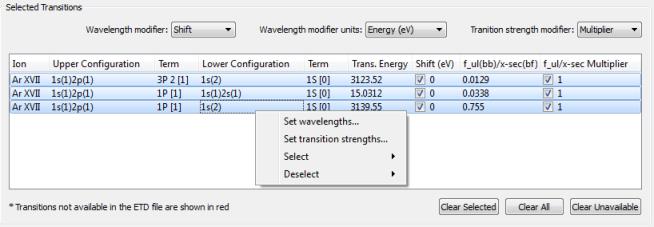
Transition modifiers can also be imported/exported to data files so that they can be used in other SPECT3D or PrismSPECT applications. To do this, in the Set Transition Modifiers dialog, select the File | Import (Export) Transition Modifiers menu items.
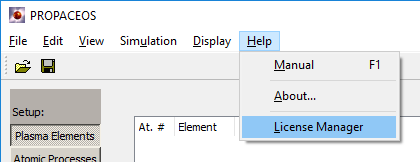
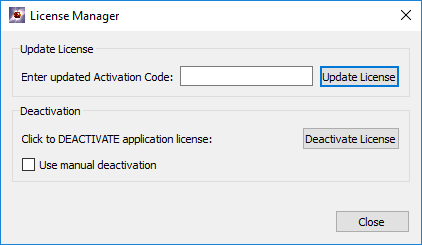
A button is available for online deactivation. Alternatively, manual deactivation is available via email contact with Prism.
Limitations:
.
| Copyright © 2024 Prism Computational Sciences, Inc. | PROPACEOS 10.0.0 |
