
| CONTENTS | GLOSSARY | SEARCH DOCUMENTATION |
After simulation parameters are set up, the simulation can be started by selecting the Simulation | Start menu item, or by pressing the Run Simulation button on the left side of the Main Window.
The simulation can be aborted by selecting Simulation | Abort menu item, or by pressing the Abort button in the progress monitor dialog.
Prior to running a simulation, the run name and run directory must be specified in the Set Run Parameters dialog. The run name and run directory are used to specify the filepaths for the output files.
The format of the output file can be the current format, or any previous format listed in the combo box.
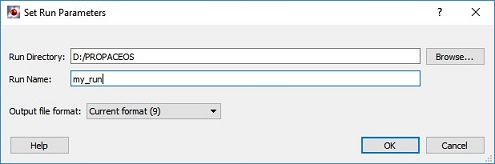
If files already exist in the run directory that have the same run name, a warning message is provided.
If a workspace is already set up and saved, PROPACEOS can be run in batch mode from the command line.
Options:
Example:
propaceos.exe -b -i my_workspace -d my_path/my_prp_files -x -q
The above line will produce a .prp file only, with the same name as the workspace, in the directory my_path/my_prp_files, overwriting any previous file that has the same name. By using this same command for different workspaces, a list of *.prp files can be generated in the same directory.
| Copyright © 2024 Prism Computational Sciences, Inc. | PROPACEOS 10.0.0 |